


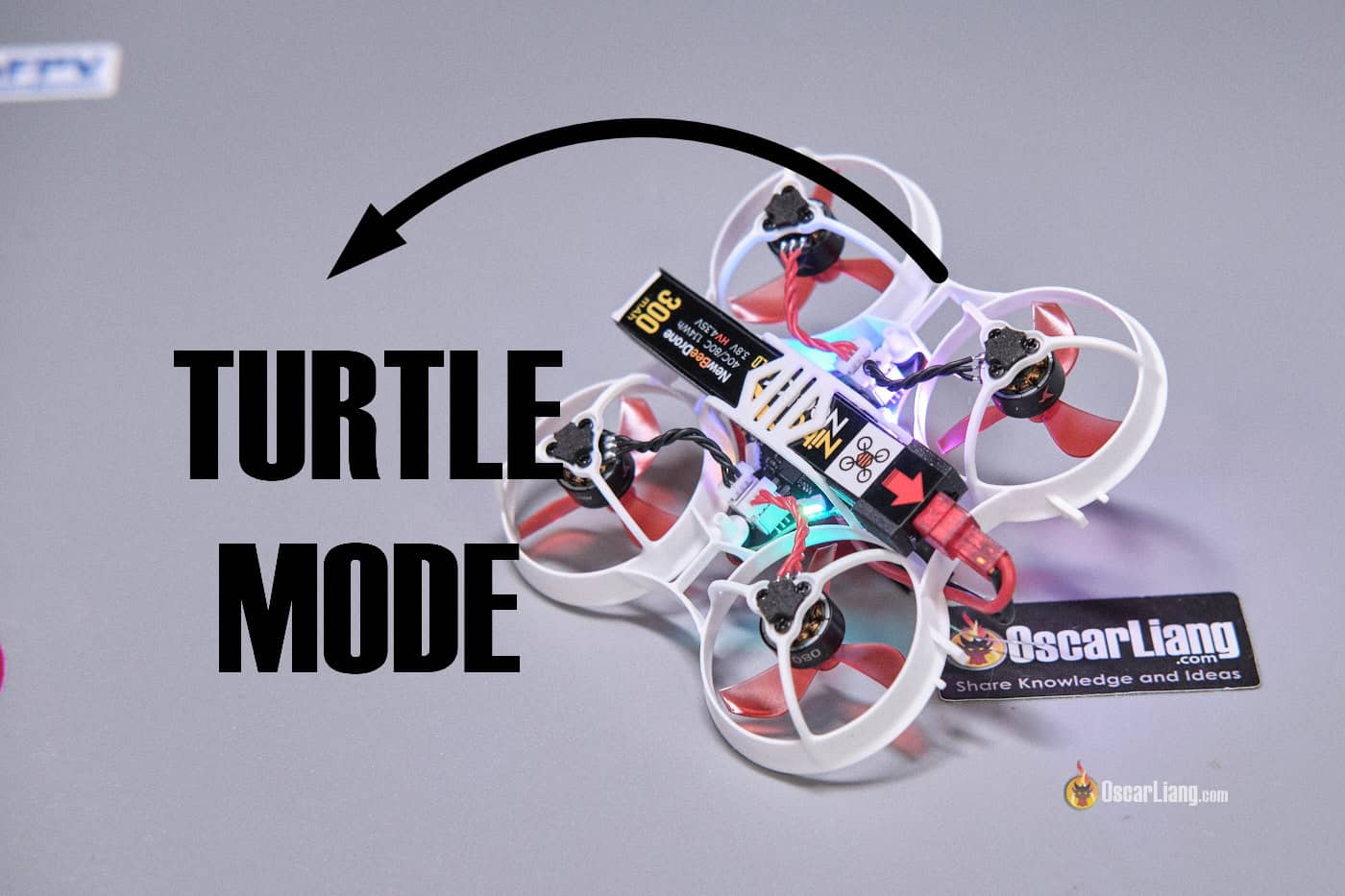
Are you tired of walking over to pick up your drone after every crash when it flips upside down? You have to try Turtle Mode! With a flip of a switch, your quad can right itself so you can take off again without retrieving it. Note: “Turtle Mode” was renamed to Flip Over After Crash in Betaflight, but most pilots still use the old name because it’s simply better.

In Betaflight 2025.12, this feature received major improvements, including better behavior once the quad flips upright. However, the new functionality is not enabled by default, so you’ll need to configure it manually. In this tutorial, I’ll walk through how to set up Turtle Mode properly, including the new crash-flip settings, OSD indicator, and how to adjust it in the field if needed.
See my other tutorials related to Betaflight.
Limitations of Flip Over After Crash
Turtle Mode only works if the props aren’t obstructed. It works best on flat surfaces and less reliably on grass, especially when the props are tangled. If motors stall while Turtle Mode is active, there is a risk of damaging motors or ESCs due to high current draw.
Turtle Mode works by temporarily reversing motor direction, which requires the DShot ESC protocol. Analog protocols such as PWM, Oneshot, and Multishot do not support it. If you want to use Turtle Mode, make sure DShot is selected when flashing Betaflight (it is selected by default).
This also means quads with brushed motors do not support Turtle Mode, because brushed ESCs don’t use DShot.
Step 1: Make Sure Accelerometer Is Working
Before configuring Turtle Mode, check that the accelerometer is enabled and working correctly.
The improved Turtle Mode relies on the accelerometer to detect when the quad has flipped upright so the motors can automatically stop.
How to check:
- Connect your quad to Betaflight Configurator
- Open the Setup tab
- Move the quad in your hand and confirm the 3D model moves correctly

If the accelerometer is not working:
- Ensure Accelerometer is enabled in the Configuration tab
- Reflash Betaflight firmware
- Maybe accelerometer is faulty
Without a working accelerometer, the new Turtle Mode improvements will not function properly.
Step 2: Make Sure DShot Is Selected
Go to the Motors tab in Betaflight Configurator and ensure either DShot300 or DShot600 is selected as the ESC protocol.

If DShot is not available:
- Update to a recent version of Betaflight
- Make sure DShot was selected as the motor protocol before firmware flashing
Step 3: Assign Flip Over After Crash to a Switch
Next, assign a radio switch for Turtle Mode.
Assign a Switch in Your Radio
Choose a switch you want to use and map it to a free channel. If you’re unsure how to set up switches, check out this guide: https://oscarliang.com/setup-switch-mixes/
Basic steps:
- Open the Model menu on your radio
- Go to the Mixes page
- Select an unused channel (e.g. CH6, CH7 or CH8)
- Long-press → Edit
- Set Source by flipping the switch you want to use
Set It Up in Betaflight
- Go to the Modes tab
- Find Flip Over After Crash, click Add Range
- Assign it to a switch of your choice (e.g. AUX 4 = CH8)
- Set the activation range
- Flip the switch, the yellow dot below the slider should go inside the activation range
If you’re unfamiliar with the Modes tab, see this beginner guide: https://oscarliang.com/betaflight-modes/

Step 4: Disable Maximum Arm Angle
Maximum Arm Angle is a safety feature that prevents the drone from arming when it’s on an uneven surface. However, Turtle Mode requires the quad to arm while upside down, so you must disable this feature. Note: make sure you understand the risks before disabling any safety feature.
To disable it:
- Go to the Configuration tab
- Set Maximum Arm Angle (Arming) to 180°
- Save settings
(See number 3 in the screenshot.)

Step 5: Add the Turtle Mode Arrow to the OSD
Betaflight provides a directional arrow that shows which way you should move the stick to flip the quad. This is especially helpful for beginners who aren’t sure which direction to go.
This indicator only appears when Turtle Mode is active.

How to enable it
- Open the OSD tab
- Find Flip After Crash Arrow
- Enable it
- Place it anywhere on your OSD layout
Once enabled, the arrow will appear whenever turtle mode is activated.
Step 6: Set Crash Flip Rate
By default, the crashflip_rate value is 0. To use the improved Turtle Mode behavior, you need to enable it via the CLI.
- Open the CLI tab
- Enter:
set crashflip_rate = 15
save
The crash flip rate determines how much motor power is applied during the flip:
- Higher value = more power
- Too high → quad may flip too fast and overshoot
- Too low → quad may not flip at all
The goal is to use just enough power to flip over the quad smoothly.
I’ve found a value around 15 works well for almost everything from tiny whoops to 5-inch quads, but you should experiment to find the best value for your setup. Heavier/weaker quads may require slightly higher values.
Adjusting Crash Flip Rate in the Field
You can also change this value from the OSD menu:
- Open the OSD menu in your goggles (Throttle mid + yaw left + pitch up)
- Navigate to MISC (Miscellaneous)
- Find Crash Flip Rate
- Adjust as needed
How to Use Turtle Mode
When your drone is upside down:
- Disarm the quad
- Activate the Turtle Mode switch
- Arm the quad
- Gradually move the roll or pitch stick in the direction shown by the OSD arrow
The motors will spin to flip the quad upright. Once upright, the motors will automatically stop.
Important: Do not slam the stick too quickly. Move it smoothly in the indicated direction so the motors ramp up gradually.
Optional Feature: Auto Rearm

There is another CLI option:
crashflip_auto_rearm
When enabled, the quad will automatically re-arm after flipping upright.
This can be risky though.
If you exit Turtle Mode while the arm switch is still active, the quad may immediately throttle up and take off.
- Racers may prefer this to reduce downtime
- Casual pilots should keep it disabled for safety and re-arm manually
Other Uses of Turtle Mode
Turtle Mode can sometimes shake a quad loose from branches or obstacles. However, if the props are tangled, do not use it — you could damage motors or ESCs.

If the quad is stuck in a tree, the new crash-flip behavior may stop the motors from running continuously. In that case, you may try to temporarily revert to the old behavior.
Simply set crashflip_rate to 0 (You can do this through the OSD menu).
This restores the legacy behavior where motor output directly follows stick input, which may help shake the quad free.
Final Thoughts
Turtle Mode can save you countless walks across the field after crashes. It has existed in Betaflight for years, but the improvements in new Betaflight updates make it safer and more refined — although it requires a bit more setup. Once configured properly, the system can automatically stop the motors after the quad flips upright, reducing the chance of over-spinning or damage.
If you fly regularly, Turtle Mode is absolutely worth setting up.
Edit History
- Nov 2018 – guide created
- Jun 2020 – updated instructions
- Mar 2026 – updated for Betaflight 2025.12

