



31.2K
One of the most common problems beginners encounter is when a Betaflight drone refuses to arm. You flip the arm switch… and nothing happens. This is usually not a hardware failure. Betaflight includes many safety checks that intentionally prevent arming if something isn’t configured correctly. In this guide, I’ll show you how to quickly identify the problem and fix it.

Some of the links on this page are affiliate links. I receive a commission (at no extra cost to you) if you make a purchase after clicking on one of these affiliate links. This helps support the free content for the community on this website. Please read our Affiliate Link Policy for more information.
New to Betaflight? No worries—here’s a tutorial to get you started on setting it up for the first time: https://oscarliang.com/betaflight-firmware-setup/
Common Issues
Alright, here are the most common causes why your drone isn’t arming.
Unplugging USB Cable

Betaflight has a safety feature where your drone won’t arm if the flight controller is connected to the configurator (you will get a MSP warning flag in the OSD and CLI when you attempt to arm). So, make sure USB cable is unplugged and give it another go.
Moving Throttle Stick Down

The throttle stick needs to be lowered all the way down in order to arm. Betaflight doesn’t arm if it’s above the minimum throttle (higher than the min_check value). This is a safety feature so that the quad doesn’t suddenly spin up the motors and hurt you when it’s armed.
You must ensure that your throttle is lower than min_check when it’s in the lowest stick position. The default min_check value is 1050, which should work fine for most people. That means when you lower your throttle stick all the way down, the throttle value should be lower than 1050, any value higher than that will prevent your drone from arming.
Drone on an Uneven Surface

By default, Maximum Arm Angle in the Configuration tab is set to 25° (see number 3 in above screenshot). This is a safety feature to prevent the drone from arming if it’s tilted beyond that angle.
To fix this, you can:
- Place the drone on a flat surface, or
- Increase the Maximum Arm Angle to a higher value, such as 45° or 60°, or
- Disable the feature entirely by setting the angle to 180°.
Some pilots prefer disabling this feature because it allows them to arm the quad when it’s stuck in trees, which may help shake it loose. However, you should carefully consider the risks before disabling any safety feature.
Another possible cause is a faulty accelerometer. If disabling the arm angle does not solve the problem, try disabling the accelerometer in the Configuration tab.
Keep in mind that disabling the accelerometer will also disable Angle mode, Horizon mode, GPS Rescue, and Position Hold, since these features rely on accelerometer data.
Radio Receiver Check

Ensure your radio receiver is bound and working correctly in Betaflight. How to bind ExpressLRS radio/receivers: https://oscarliang.com/bind-expresslrs-receivers/
Then head over to the receiver tab to see if the channel responses match your stick movements correctly. If the channels are wrong, it’s possible that you are using the wrong channel map, select a different channel and see if resolves the issue. To learn more about channel map see this guide: https://oscarliang.com/channel-map/

Arm Mode Assignment

Did you setup an ARM switch correctly? If you don’t know how to do it, here’s the tutorial: https://oscarliang.com/betaflight-modes/#How-to-Setup-Arm-Switch
Basically. go to the Modes tab, and assign an auxiliary switch to “ARM”, typically AUX 1 for ExpressLRS.
- AUX 1 = Channel 5
- AUX 2 = Channel 6
- AUX 3 = Channel 7
- and so on
ARM mode should turn red when activated on the bench, signalling it’s responding to your radio switch, and it’s been set correctly.

If that’s working, but the drone still won’t arm, let’s troubleshoot a bit deeper.
Check the Arming Disable Flags in Betaflight
OSD
If you’ve got Betaflight OSD, enable “Warnings” on your screen with “Arming Disabled” selected. It’ll give you clue on what’s preventing the drone from arming.

Betaflight Configurator
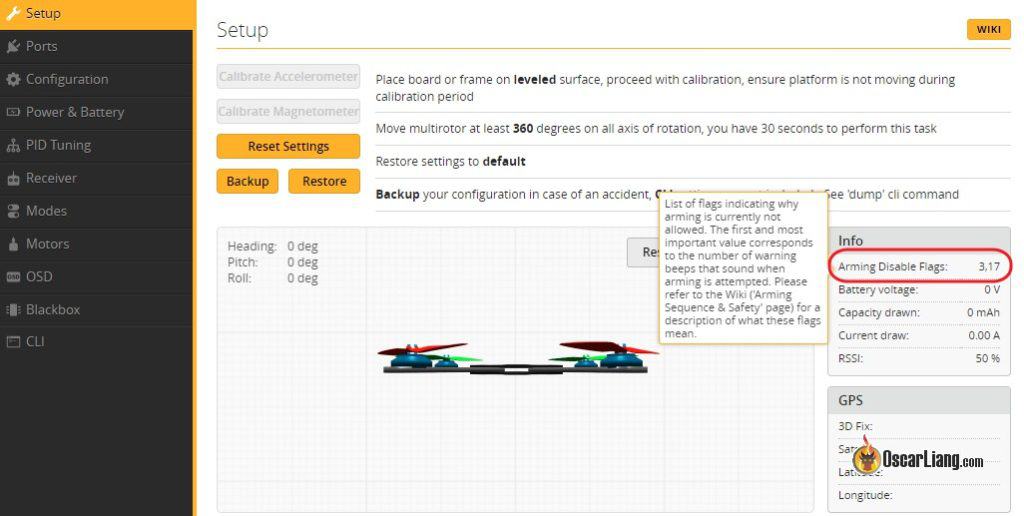
If you don’t have OSD, you can check the “Arming Disable Flag” in the Setup Tab in the Betaflight configurator. But they are usually numbers and you need to look it up in the table below.
CLI
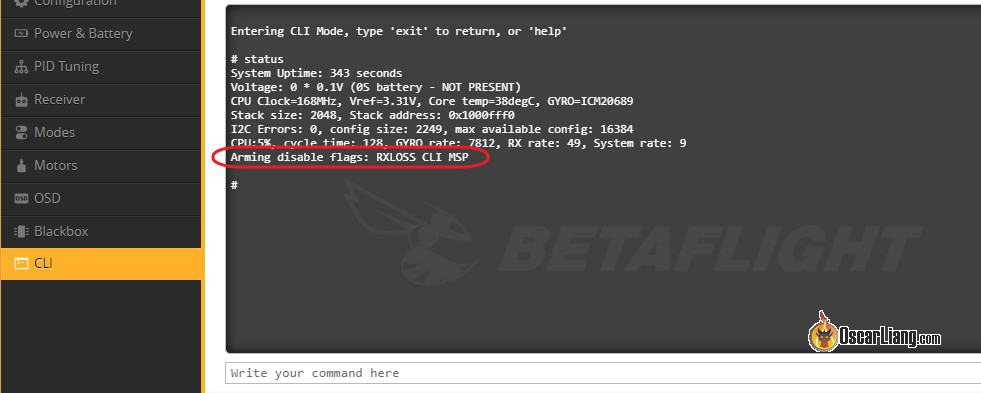
Alternatively, you can also check in the CLI by entering the command “status”, the last line shows you the arming prevention flags.
Further Reading: How to use CLI in Betaflight?
Buzzer Beeping
If you don’t have OSD, and don’t have access to Betaflight Configurator, you can listen to the beeps from the buzzer. The number of beeps indicates the disarm flags. Here’s how to decipher the beeping pattern:
- Five short beeps for just attention, which can be ignored
- A number of long beeps
- A number of short beeps with long intervals
Each long beep represents 5, while each short beep represents 1. The final flag number can be calculated as 5 x
For example:
- 0 long beep and 2 short beeps = 2
- 1 long beep and 3 short beeps = 8
- 2 long beeps + 0 short beeps = 10
Yes, slightly more confusing. That’s why it’s easier to use OSD, or look it up in the configurator.
Arming Prevention Flags Lookup Table
Once you’ve found the arming disabled flag codes or errors, look it up in this table for the issue and solution. This table is from the Betaflight wiki.
| Error Names | Issue Description | Code | Solution |
|---|---|---|---|
NOGYRO |
A gyro was not detected | 1 | You may have a hardware failure, if a previous firmware version works then it may be a firmware issue. Or you might have flashed a wrong target. |
FAILSAFE |
Failsafe is active | 2 | Rectify the failure condition and try again. |
RXLOSS (1) or RX_FAILSAFE |
No valid receiver signal is detected | 3 | Your receiver is either faulty or has no link to the transmitter. |
BADRX (1) or NOT_DISARMED |
Your receiver has just recovered from failsafe but the arm switch is on | 4 | Deactivate the arm switch first. |
BOXFAILSAFE |
The ‘FAILSAFE’ switch was activated | 5 | See FAILSAFE |
RUNAWAY |
Runaway Takeoff Prevention has been triggered | 6 | Disarm to clear this condition. |
CRASH |
Crash Recovery has been triggered | 7 | Disarm to clear this condition. |
THROTTLE |
Throttle channel is too high | 8 | Lower throttle below min_check. |
ANGLE |
Craft is not level (enough) | 9 | Level craft to within small_angle degrees (default 25). |
BOOTGRACE |
Arming too soon after power on | 10 | Wait until pwr_on_arm_grace seconds (default 5) have elapsed. |
NOPREARM |
Prearm switch is not activated or prearm has not been toggled after disarm | 11 | Toggle the prearm switch. |
LOAD |
System load is too high for safe flight | 12 | Revisit configuration and disable features. |
CALIB |
Sensor calibration is still ongoing | 13 | Wait for sensor calibration to complete. |
CLI |
CLI is active | 14 | Exit the CLI. |
CMS |
CMS (config menu) is active – it could be OSD or other display menu | 15 | Exit the config menu (or OSD menu). |
BST |
A Black Sheep Telemetry device (TBS Core Pro for example) disarmed and is preventing arming | 16 | Refer to the manual for your hardware. |
MSP |
MSP connection is active, probably via Betaflight Configurator | 17 | Terminate the Betaflight Configurator connection (click disconnect button or unplug USB cable). |
PARALYZE |
Paralyze mode has been activated | 18 | Power cycle/reset FC board. |
GPS |
GPS rescue mode is configured but required number of satellites has not been fixed | 19 | Wait for GPS fix, enable arming without GPS fix, or disable GPS rescue mode. |
RESCUE_SW |
GPS Rescue switch is turned on | 20 | Deactivate the GPS Rescue switch before arming. |
RPMFILTER (2) or DSHOT_TELEM |
Motor RPM-based filtering is not functioning | 21 | One or more ESC’s are not supplying valid RPM telemetry. |
REBOOT_REQD |
Reboot required | 22 | Reboot the flight controller for settings changes to take effect. |
DSHOT_BBANG |
DSHOT Bitbang is not working | 23 | Bitbang DSHOT is not working properly and the motors can’t be controlled. Likely caused by a timer conflict with other features enabled on the flight controller. |
NO_ACC_CAL |
Accelerometer calibration required | 24 | Calibrate the accelerometer or disable features that use it |
MOTOR_PROTO |
ESC/Motor Protocol not configured | 25 | Select the ESC/Motor protocol to use on the Configuration tab. |
ARMSWITCH |
Arm switch is in an unsafe position | 26 | Toggle the arm switch to arm. |
(1) – This may appear on the Betaflight OSD during flight, take it as a sign that your radio system is either faulty or you are flying at the edge of your range. Treat it the same you would an “RSSI critically low” warning.
(2) – RPM-based filtering is enabled but one or more ESC’s are not supplying valid DSHOT telemetry. Check that the ESC’s are capable of and have the required firmware installed to support bidirectional DSHOT telemetry.
Other Common Issues
If Betaflight shows no arming disabled flags, and you still can’t arm the drone, the problem might be unrelated to Betaflight. Here are a few more things to check.
Are ESC and Motors Actually Working?
- Did you plug in the battery? Motors should beep a few times to indicate ESC initialization. If nothing, it might indicate a power issue, connection issue between ESC and FC, or faulty FC, ESC or motors.
- Make sure DShot300 or DShot600 are selected as ESC protocol.
- Try to spin the motors using the sliders in the motors tab (remove propellers before doing so)

Is CPU Usage Too High?

When CPU load is too high, Betaflight may refuse to arm. You can find out the CPU load at the bottom of Betaflight Configurator.
CPU load should stay below 75% (per BF4.5 recommendation). To lower CPU load, you can adjust settings, such as
- lowering PID loop frequency from 8KHz to 4KHz
- disabling unnecessary features in the Configuration tab, such as LED_Strip, soft serial.
Throttle End Points
Ensure your radio gimbals are correctly calibrated, and that they reach the correct end points.
When your throttle’s lowest value is higher than it should be, Betaflight will refuse to arm. Ideally the range of the channels should be 1000 to 2000. Slightly outside of this range is usually fine and doesn’t do any harm, e.g. 988/990 – 2010-2012 is fine. However, if your end points are within this range, that’s not ideal. Not only you are not using the full range, it might also stop you from arming. To fix that, you should calibrate your stick endpoints properly by following this guide: https://oscarliang.com/adjust-tx-channel-mid-end-point/

Moron threshold
Some FC may have more sensitive gyro’s and the drone would refuse to calibrate and initialize after power up, and you won’t be able to arm it.
By increase “gyro_calib_noise_limit” (previously known as Moron Threshold) in CLI reduces gyro sensitivity during initialization. You can try setting it to 100 or even 120.
Conclusion
When a Betaflight drone refuses to arm, it’s usually due to failure of safety checks. Once you learn how to read the arming disable flags, diagnosing the problem becomes much easier. Of course, there are other common causes too such as radio and receiver setup, stick endpoints etc.
If you are still having problems arming your quad after following this guide, feel free to post your question on our forum, our community is always here to support and learn together. Happy flying!
Edit History
- Jun 2018 – Tutorial created.
- Feb 2024 – Updated.
- Mar 2026 – Updated.

