


Having trouble connecting your flight controller (FC) to Betaflight configurator on your computer, or flashing firmware? In most cases, this is caused by missing or incorrect drivers, or bad cable. In this tutorial, I’ll explain the potential causes and simple step-by-step solutions to help you fix the issue. I’ll also cover the basics of the drivers needed for STM32-based flight controllers, so you understand what you are doing.

New to FPV? Learn the basics of flight controllers in my buyer’s guide: https://oscarliang.com/flight-controller/
You Need Two Drivers
Betaflight flight controllers require two main drivers: the VCP driver and the DFU driver. Here’s what each does:
VCP Driver (Virtual COM Port)
- Used when your flight controller is in normal operating mode — this allows Betaflight Configurator to connect, read, and write settings.
- When it’s working properly, Betaflight Configurator will recognize the FC as a COM port, e.g.
COM3. - Windows usually installs this driver automatically, so for most users, it should be plug and play.
DFU Driver (Device Firmware Upgrade)
- Used when your flight controller is in bootloader mode — this is the mode required for flashing firmware.
- In this mode, the FC shows up in Windows as “
STM32 BOOTLOADER”, and in Betaflight Configurator as “DFU”. - Beginners often struggle with DFU mode because it requires manually putting the FC into bootloader mode and installing the DFU driver
- You may also have to repeat this process for different flight controllers, so expect to encounter DFU driver issues when you get a new drone. But once you understand the process and the common causes, though, it becomes easy to handle.
Learn how to enter DFU mode here: https://oscarliang.com/dfu-mode/
Failed to Open Serial Port
The error “Failed to open serial port” is one of the most common issues when connecting a flight controller to Betaflight Configurator.
Common Causes and Solutions
- Another software is using the COM port (e.g., BLHeli Configurator, INAV, or a serial terminal). Try closing all the apps, even your browser, anything that might be accessing the FC. Sometimes Windows locks the port, so try unplugging and replugging the USB cable to reset it. If that doesn’t work, restart your PC. Still no luck? Try a different PC to rule out software issues.
- Try a different USB cable, make sure it’s a data cable, not charge-only. Make sure the connector is firmly inserted on both ends.
- Missing or incorrect VCP driver. This is less common, but can happen if your STM32 VCP driver isn’t properly installed.
- Open Device Manager → Ports (COM & LPT). You should see something like:
STM32 Virtual COM Port (COM3). - If you see “Unknown Device” or “USB Serial Device”, you likely need to install the VCP driver. To fix it, there are 3 methods you can try:
- Download and run the ImpulseRC Driver Fixer tool here, this is the easiest way.
- Or install the Virtual COM Port (VCP) Driver from ST: https://www.st.com/en/development-tools/stsw-stm32102.html. You’ll need to create a login or provide your email address to receive the download link.
- Alternatively, try the official CP210x USB to UART Bridge Virtual COM Port driver here.
- Open Device Manager → Ports (COM & LPT). You should see something like:
Can’t Get Into Bootloader Mode (DFU)
To flash firmware, your flight controller (FC) needs to be in bootloader mode, also known as DFU mode.
Most flight controllers have a boot button. Hold down this button while plugging in the USB cable, and the FC should enter DFU mode. There are also other methods to enter DFU mode (for example, through Betaflight CLI commands). I’ve explained all of them in detail here — I won’t repeat them in this post to keep it short: https://oscarliang.com/dfu-mode/
If you can’t get into DFU mode, the easiest fix is to use the ImpulseRC Driver Fixer tool.
- Connect your flight controller to your computer via USB.
- Download and run the ImpulseRC Driver Fixer tool here.
- The tool will automatically detect your flight controller and install the correct drivers. If it keeps saying “Searching for flight controller”, try unplug FC and plug it back in without pressing the bootloader button.
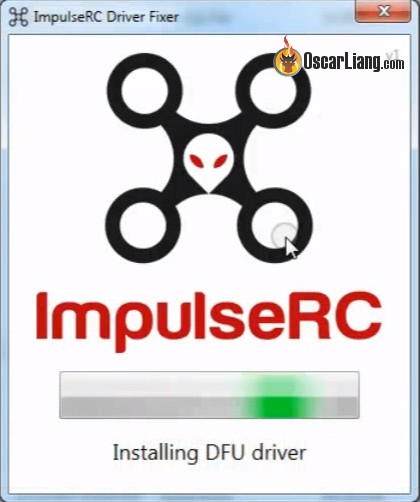
Once it’s done, open Betaflight Configurator — your FC should now appear in DFU mode.

Error: “Unexpected Number of Devices Detected”
If you see this error while using ImpulseRC Driver Fixer, it’s usually because other components connected to your FC are interfering. This includes devices like: receiver, GPS module, DJI Air Unit etc. Basically anything that is connected to the serial ports / UART’s.
Solution: Disconnect all peripherals, leave only the USB cable plugged in, and run the tool again.
Wrong DFU Driver Installed
If your FC connects to Betaflight Configurator just fine, but when trying to flash firmware, it gives you the “Failed to open serial port” error and ImpulseRC Driver Fixer doesn’t resolve the issue, it’s possible that the wrong DFU driver is installed. In my case, it was “Guillemot STM DFU Device“, but the correct DFU driver should be “STM32 BOOTLOADER“.
How to Check
- Put your FC in DFU mode.
- Open Device Manager and look for “Guillemot STM DFU Device” under any category (often under Sound, Video and Game Controllers).
- If you see it — congratulations, you’ve found the problem! That’s the wrong driver.
Why Reinstalling the Driver Doesn’t Work
Simply reinstalling the driver using Zadig or ImpulseRC Driver Fixer might appear to work at first — the device may briefly show up as “STM32 BOOTLOADER” — but it will always revert back to “Guillemot STM DFU Device.”
This is because the Guillemot driver automatically reinstalls itself unless it’s completely removed from your system.
How to Fix It (Completely Remove Guillemot)
- Delete these two folders if they exist:
C:\Program Files\GuillemotC:\Program Files (x86)\Guillemot
- With your FC connected in DFU mode, open Device Manager, find
Guillemot STM DFU Deviceright-click it → Uninstall device, and check “Delete the driver software for this device.” - Unplug the FC and reboot your computer.
- Put your FC back into bootloader mode and run ImpulseRC Driver Fixer again.
You should now be able to flash firmware successfully.
Nothing Works?
I’ve personally had a computer that could connect to Betaflight Configurator just fine — but never managed to flash firmware, no matter what I tried.
Different cables, different drivers, endless troubleshooting — nothing worked after trying for months.
If you have a stubborn computer like that, there’s the work around: Use the Speedybee app on your smartphone. You can connect to your FC, change settings, and flash firmware just like the desktop Betaflight Configurator.
AT32 Flight Controllers
When you first plug an AT32 flight controller into your PC, Windows normally installs the drivers automatically, and Betaflight should be able to connect to it after a few seconds. In the COM Port it should show “AT32 Virtual COM Port”. If this is not the case, you can download and install the drivers manually:
- Go to the MCU page: https://www.arterychip.com/en/product/AT32F435.jsp
- In the “USB Tool and Driver” section , download “Virtual serial port composite PC driver”: https://www.arterychip.com/download/USB_Tool_Driver/VirtualCOM_Composite_DriverInstalll_V1.0.31.zip
AT32 FC also requires different DFU drivers. Again this might be installed automatically but if not you can do it manually.
- Go to the page of the microcontroller concerned, therefore the AT32F435: https://www.arterychip.com/en/product/AT32F435.jsp
- In Resources, then “Tool” at the bottom of the page, download “In-System-Programming tool supporting AT32 MCU”: https://www.arterychip.com/download/TOOL/Artery_ISP_Programmer_V2.0.11.zip
- Unzip and enter the “Artery_DFU_DriverInstall” directory to launch the installer. Start the installation then restart the PC
Note: the ImpulseRC Driver Fixer does not work for FC with AT32 processor, only STM32 ones.
How to Install Driver On MacOS
Driver installation on macOS is slightly different.
- Download and install the CP210x driver for macOS.
- During installation, macOS may block it because it’s from an unauthorized developer.
- Go to System Preferences → Security & Privacy.
- Click the padlock icon to unlock settings.
- Click “Enable” or “Allow” next to SiLabs.
- Restart your Mac.
- Once installed, you need to go back to the same place to allow unauthorised application, Silabs in this case.
FAQ
Q: I’m having trouble flashing the board. DFU mode shows up in Betaflight Configurator, but flashing fails with this message: “Read protection not active. USB device successfully closed.”
A: Try unchecking the “Full chip erase” option before flashing. After the firmware is installed, you can reset your settings in CLI by typing: “default” in CLI to reset all settings.
Conclusion
Driver issues are one of the most common frustrations when setting up a new drone or flight controller, especially across different MCU types. With the correct VCP and DFU drivers installed, Betaflight Configurator should connect and flash firmware reliably on your PC. And there are always work around if your PC fails you.
Edit History
- Jul 2017 – Article created
- Aug 2017 – Added fix for missing VCP driver
- Feb 2023 – Added fix for replacing Guillemot DFU driver with STM32
- Sep 2024 – Added fix regarding macOS
- Feb 2025 – Added instructions for installing drivers for AT32 flight controllers
- Nov 2025 – Rewrote tutorial for clarity and added more detailed instructions

